Quick answer
- Hidden fields are form fields visitors can't see that carry extra information, such as UTM tags and the lead's source, along with the form submission.
- They were the standard way to get lead source into a CRM, but they only capture what is on the page at the time of the submission unless something remembers the source.
- A lead tracker like HeyLead records the source of every form lead without hidden fields; you still want hidden fields when your form sends leads straight to a CRM or inbox and you want the source there too.
- HeyLead fills hidden fields automatically when you name them, for example utm_source, or set their default value to a placeholder such as [utm_source].
- Forms inside a frame from another site, such as Typeform or Calendly, need hidden fields or URL parameters inside that tool instead.
Hidden fields are form fields that visitors can't see, used to send extra information, such as UTM tags and the lead's source, along with each form submission. You still need them when your form sends leads straight into a CRM or inbox and you want the source there; you don't need them just to see where leads come from if you use a lead tracker.
For years, hidden fields were the standard way to answer "where did this lead come from?" Marketers added utm_source, utm_medium and utm_campaign fields to every form, plus a script to fill them, and hoped the values survived. Often they didn't: the fields came through empty, or only on some forms, or only when the visitor filled in the form on the first page they saw.
This guide explains what hidden fields are, why they break, when a lead tracker makes them unnecessary, when you still want them, and exactly how to set them up in common form tools.
What are hidden fields?
Hidden fields are form inputs with no visible box. The visitor never sees or types into them; instead, a script or the form tool fills them with a value, and that value is sent with the rest of the submission.
In plain HTML, a hidden field looks like this: <input type="hidden" name="utm_source" value="">. Form builders such as Gravity Forms, HubSpot forms and WPForms all have a hidden field type you can add without code.
Marketers use hidden fields to pass context with each lead:
| Hidden field | What it carries | Example value |
|---|---|---|
| utm_source | Where the click came from | |
| utm_medium | The type of traffic | cpc |
| utm_campaign | The campaign name | spring-sale |
| utm_term | The keyword | emergency plumber |
| utm_content | Which ad or link | ad-variant-b |
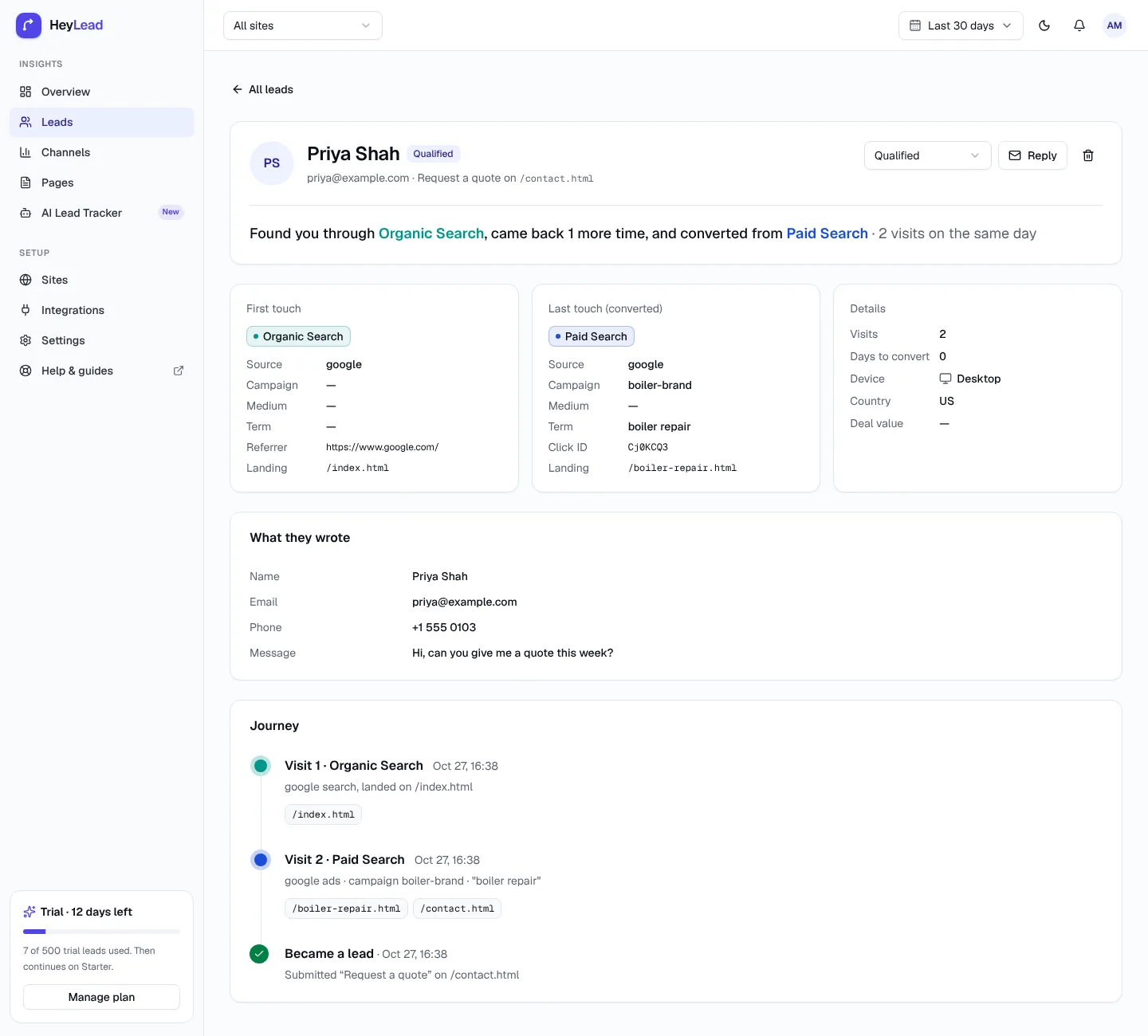
| lo_channel | The channel of the converting visit | Paid Search |
| lo_first_channel | The channel of the first visit | Organic Search |
| lo_landing_page | The first page the visitor landed on | /emergency-plumbing |
When the form is submitted, these values travel with the name, email and message into your inbox, CRM or spreadsheet.
Why do hidden fields so often come through empty?
Hidden fields often come through empty because the simplest setups only read UTM tags from the address of the page the form is on. If the visitor clicked an ad, landed on one page and then browsed to your contact page, the tags are gone by the time they fill in the form.
The common causes:
- The visitor changed page. UTM tags live in the address of the landing page only. Most people browse before they enquire.
- The visitor came back later. Someone who clicks an ad today and returns by typing your address next week arrives with no tags at all.
- The script ran before the form loaded. Forms in popups, sliders or tabs can appear after the filling script has finished.
- Field names don't match. The script fills
utm_sourcebut the form field is calledUTM Sourceorsource. - The form runs on another site. Forms inside a frame from Typeform, Jotform or Calendly can't be filled from your page.
- Untagged traffic. Organic search, AI assistants and many referrals carry no UTM tags, so UTM-only hidden fields stay empty even when the source is known.
That last point matters more than most people realise. UTM hidden fields only capture traffic you tagged yourself, so every lead from Google search, ChatGPT or another website shows up blank.
Do you still need hidden fields if you use a lead tracker?
You don't need hidden fields to see where leads come from if you use a lead tracker that captures your forms. A tracker like HeyLead remembers each visitor from their first visit, recognises tagged and untagged sources, and saves every form lead with its channel, campaign and landing page in its own dashboard.
You still want hidden fields when the source has to arrive somewhere the tracker doesn't send it:
| Situation | Need hidden fields? | Why |
|---|---|---|
| You only want to see lead sources in a dashboard | No | The lead tracker records every lead with its source |
| Your form emails leads to you and you want the source in the email | Yes | The email is built from the form fields |
| Your form sends leads straight into a CRM, such as HubSpot | Yes | The CRM record is created from the form fields |
| You send leads to your CRM from HeyLead with Zapier or a webhook | No | HeyLead sends the source with each lead |
| The form is a Typeform, Jotform, Tally or Calendly embed | Yes, in that tool | Those submissions are stored in the form tool |
| You import offline conversions into Google Ads | Yes, with gclid | The ad platform matches conversions by click ID |
So the question isn't "hidden fields or a lead tracker?" The tracker answers where leads come from; hidden fields copy that answer into the places your forms already send leads.
How does HeyLead fill hidden fields?
HeyLead fills hidden fields automatically on every page where its script runs, using the values it has remembered for that visitor, not just what is in the current page address. That fixes the most common reason hidden fields come through empty.
There are two ways to tell HeyLead which field is which:
- By name. Name the hidden field
utm_source,utm_medium,lo_channeland so on, and leave its value empty. HeyLead fills empty hidden fields with these names. - By placeholder. Set the field's default value to a placeholder such as
[utm_source],[channel],[first_channel]or[landing_page]. HeyLead swaps in the real value before the form is sent.
Either works; use whichever your form builder makes easier. HeyLead also re-fills fields in forms that appear later, such as popups, and updates fields in React-controlled forms. Developers can read the same values with window.HeyLead.fields().
The full list of values HeyLead can fill:
| Placeholder | Field name | Example result |
|---|---|---|
| [utm_source] | utm_source | |
| [utm_medium] | utm_medium | cpc |
| [utm_campaign] | utm_campaign | spring-sale |
| [utm_term] | utm_term | emergency plumber |
| [utm_content] | utm_content | ad-variant-b |
| [channel] | lo_channel | Paid Search |
| [first_channel] | lo_first_channel | Organic Search |
| [landing_page] | lo_landing_page | /emergency-plumbing |
| [source] | lo_source | ChatGPT |
| [first_source] | lo_first_source | |
| [first_campaign] | lo_first_campaign | brand |
| [referrer] | lo_referrer | https://chatgpt.com/ |
| [gclid] | gclid | Google Ads click ID |
| [fbclid] | fbclid | Meta click ID |
| [msclkid] | msclkid | Microsoft Ads click ID |
| [visitor_id] | lo_visitor_id | HeyLead visitor ID |
The first eight cover most needs. lo_source is useful because it holds a source even for untagged visits, such as ChatGPT or a referring website, where utm_source would be empty.
How do you add hidden fields in popular form tools?
Most form tools let you add hidden fields without code. Here are the steps for the most common ones; each site's Forms tab in HeyLead shows the same instructions with copy buttons.
Gravity Forms
- Open Forms, choose your form and click Edit.
- Add a Hidden field and set its label to
UTM Source. - In the field's Advanced tab, set Default Value to
[utm_source]. - Repeat for the other fields, then save.
WPForms, Ninja Forms and Fluent Forms
Add a hidden field for each value and set its Default Value to the placeholder, such as [utm_source]. In Fluent Forms, also set the Name Attribute to utm_source.
Elementor Forms
Add a Hidden field, set the Label to UTM Source, then in Advanced set Default Value to [utm_source] and ID to utm_source. The values then arrive in your Actions After Submit, such as a webhook, HubSpot or Zapier, under those IDs.
Contact Form 7
Contact Form 7 uses square brackets itself, so leave the value empty and name the hidden tags utm_source and so on. Add them to the Mail tab, for example Source: [utm_source] / [utm_medium], so they appear in the notification email.
HubSpot forms
- In HubSpot, create contact properties with the internal names
utm_source,utm_medium,utm_campaign,utm_term,utm_contentandlo_channel. - Add those properties to your form and mark each as Hidden with an empty default value.
- Publish. HeyLead fills them on every page where the form is embedded.
This only works for HubSpot forms embedded on your own pages. A shared HubSpot form link runs on HubSpot's site and can't be filled; send leads from HeyLead with Zapier or a webhook instead.
Webflow and custom HTML forms
Paste hidden inputs inside your form, such as <input type="hidden" name="utm_source" value="[utm_source]">, one per value. In React or Next.js, render them as normal inputs; HeyLead updates React-controlled inputs too.
Squarespace
Add hidden fields named SQF_UTM_SOURCE, SQF_UTM_MEDIUM, SQF_UTM_CAMPAIGN and SQF_LO_CHANNEL. HeyLead reads the name after SQF_ and fills them.
Wix Forms
Wix Forms doesn't support custom hidden fields on every plan, so the simplest route is to send leads from HeyLead to your CRM with a webhook or Zapier, which includes the source automatically.
What about Typeform, Jotform, Tally and Calendly?
Forms that run inside a frame from another site can't be read or filled from your page, so hidden fields have to be set up inside the form tool. HeyLead helps by adding the UTM values to the embedded form's address automatically.
| Tool | What to create | Names to use |
|---|---|---|
| Typeform | Hidden fields | utm_source, utm_medium, utm_campaign, utm_term, utm_content, lo_channel |
| Jotform | URL parameters (hidden fields) | The same names |
| Tally | Hidden fields from URL parameters | The same names |
| Calendly | Nothing | Calendly stores UTM values with each booking automatically |
Because these forms run on another website, their submissions are stored in the form tool and don't appear in your HeyLead dashboard. Send them on to your CRM from the form tool, with the source fields included.
How do you check that hidden fields are working?
Check hidden fields by sending a test lead with tags you'll recognise, then looking at where the lead arrives.
- Open your site with test tags, such as
yoursite.com/?utm_source=test&utm_medium=check&utm_campaign=hidden-fields. - Browse to a different page before the form, to test that the values are remembered.
- Submit the form with a test name and email.
- Check the email notification or CRM record: the hidden fields should show test, check and hidden-fields.
- Add
?lo_debug=1to a page address and open the browser console to see what HeyLead detects and fills;?lo_debug=0turns it off. - Delete the test lead afterwards.
What are the most common hidden field mistakes?
- Relying on the current page address. Tags disappear as soon as visitors change page; use a script that remembers them.
- Only capturing UTM tags. Organic search, AI assistants and referrals arrive untagged; add
lo_channelorlo_sourcetoo. - Mismatched names. Use the exact names or placeholders, including case and underscores.
- Forgetting the notification email. Values saved but not added to the email template are easy to miss.
- Shared form links. HubSpot and other hosted form links can't be filled from your site.
- Expecting iframe forms in your dashboard. Typeform, Jotform, Tally and Calendly submissions stay in those tools.
Key takeaways
- Hidden fields carry extra values, such as UTM tags and lead source, with each form submission.
- They often come through empty because UTM tags disappear when visitors change page or return later.
- A lead tracker records lead sources without hidden fields; use hidden fields to copy the source into emails and CRM records your forms create.
- HeyLead fills fields named like
utm_sourceor set to placeholders like[utm_source], using remembered values. - Forms inside a frame need hidden fields or URL parameters set up inside the form tool.
Read why your CRM says Direct, how no-code lead tracking works, see the integrations, or check pricing.
Frequently asked questions
What are hidden fields in a form?
Hidden fields are form inputs that visitors don't see. They hold extra values, such as the UTM source or the page the visitor landed on, and send them with the form submission so the lead arrives in your inbox or CRM with that context.
Do I need hidden fields to track lead source?
Not with HeyLead. It records the source, campaign and landing page of every form lead on your site without any hidden fields. You only need them if you also want those values to arrive in the email or CRM record your form creates.
Why are my hidden UTM fields empty?
Usually because the visitor browsed to another page before submitting and the UTM tags weren't on the form's page. Hidden fields that only read the current address lose the tags. A script that remembers the first visit, like HeyLead, fills them on any page.
How do I add hidden UTM fields to a HubSpot form?
Create contact properties named utm_source, utm_medium, utm_campaign, utm_term, utm_content and lo_channel, add them to the form as hidden fields with empty default values, and publish. HeyLead fills them when the form is embedded on your site.
What placeholder values does HeyLead use?
Set a hidden field's default value to a placeholder such as [utm_source], [utm_medium], [utm_campaign], [channel], [first_channel] or [landing_page], or name the field utm_source, lo_channel and so on with an empty value. HeyLead replaces either with the real value before the form is sent.
Can hidden fields work with Typeform or Calendly?
Yes, inside those tools. HeyLead adds the UTM values to the embedded form's address, and you create hidden fields or URL parameters with the same names in Typeform, Jotform or Tally. Calendly stores UTM values with each booking automatically. These submissions are saved in the form tool, not in the HeyLead dashboard.
Which hidden fields should I add?
Start with eight; utm_source, utm_medium, utm_campaign, utm_term, utm_content, the channel, the first channel and the first landing page. Add click IDs such as gclid only if you import offline conversions into an ad platform.